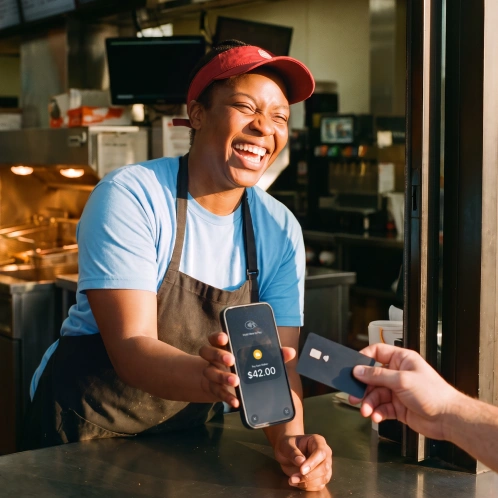
Tap to Pay Android: How to Set Up and Accept Payments

See article summary
- Any Android phone with NFC and Android 9+ can make contactless payments through Google Wallet in under five minutes of setup.
- Tap to pay uses NFC to transmit an encrypted token to the terminal, keeping your real card number hidden from the merchant.
- Common issues like failed taps or declined payments usually trace back to a disabled NFC toggle, metal phone case, or wrong default payment app.
- JIM Tap to Pay turns your Android phone into a card reader at a flat 1.99% per transaction with instant payouts and zero hardware cost.
Tap to Pay on Android turns your phone into a contactless wallet or a card reader, depending on which side of the counter you stand. One device, two uses, no extra hardware.
Over 75% of in-store transactions on the Mastercard network now run on contactless technology, and the shift is only accelerating. Source: Mastercard, "Contactless payments in 2025: Tap and go now habit".
What is tap to pay on Android?
Tap to pay turns your Android phone into a digital wallet for contactless payments. Your device uses NFC (Near Field Communication) to send payment data to a terminal within 1 to 2 inches, finishing the transaction in seconds.
How NFC contactless payments work
NFC is a short-range wireless protocol built into most Android phones today. When you tap and pay, it creates a secure connection between your device and the terminal. For a deeper dive into this technology, read our guide on what NFC is and how it works.
This mobile payment technology supports Visa, Mastercard, American Express, and Discover networks, plus digital wallets like Google Wallet and Samsung Wallet.
Where you can use tap to pay
According to Visa, tap to pay works at millions of US locations, including:
- Grocery stores, coffee shops, and restaurants
- Public transit like the New York MTA
- Retail pharmacies, vending machines, and taxis
Look for the contactless symbol (four curved lines, similar to a sideways Wi-Fi icon) on the terminal at checkout.
How to set up tap to pay on your Android phone
Learning how to use Google Wallet for Android tap to pay takes under five minutes. Confirm your phone meets three requirements, add a card, and you are ready for your first NFC payment.
Before you start, check these prerequisites:
- Android 9 or higher (required by Google Wallet)
- NFC hardware built into your phone
- A secure screen lock enabled (PIN, fingerprint, or face unlock)
Most flagship and mid-range Android phones from Google Pixel, Samsung Galaxy, and Xiaomi already include NFC.
Check if your Android phone supports tap to pay
Open Settings > Connected Devices > Connection Preferences. If you see an NFC toggle, your phone supports contactless payments.
No NFC option? Your device lacks the hardware and cannot use tap to pay.
Enable NFC and add a card to Google Wallet
- Turn on the NFC toggle in Connection Preferences
- Open Google Wallet (pre-installed on most Android phones)
- If missing, download it free from Google Play
- Tap "Add to Wallet" and select "Payment card"
- Scan or type your card details (Visa, Mastercard, Amex, or Discover)
- Verify the card through your bank
- Your bank may send an SMS code or in-app prompt
Set Google Wallet as your default payment app
Go to Settings > Connected Devices > Connection Preferences > Contactless payments. Select Google Wallet as your default NFC payment app.
This ensures your phone uses Google Wallet automatically when you tap at a terminal. Skip this step and your phone may open a different app or fail to respond.
If you also sell products or services, your Android phone can accept tap to pay from customers with JIM at a flat 1.99% per transaction. Learn more about how to accept contactless payments as a merchant.
How to pay in a store with tap to pay on Android
Complete a tap to pay transaction step by step
Here is how to use tap to pay on Android at any contactless terminal.
- Unlock your phone before approaching the terminal
- Hold the back of your device against the contactless reader
- Wait for the blue checkmark on your screen
You do not need to open Google Wallet. The NFC antenna communicates automatically once your phone is unlocked.
NFC antenna location by brand
The NFC antenna sits in different spots depending on your phone. Hold the right area against the reader for a clean tap.
| Brand family | Antenna location | Where to hold |
|---|---|---|
| Google Pixel | Center to upper-middle back | Center back flat against the reader |
| Samsung Galaxy | Upper-middle back, just below the cameras | Upper back against the reader |
| Xiaomi and others | Top edge or upper back | Top edge against the reader |
Hold the phone flat against the reader for 2 to 3 seconds. If the first tap fails, slide the phone slightly and try again to find the sweet spot.
Tap to pay spending limits
Most tap to pay transactions go through instantly. But verification thresholds vary by card network.
Mastercard sets its US contactless cardholder verification threshold at $100 per transaction, above which the terminal may ask for a PIN or signature. Source: Mastercard Contactless Acquirer Toolkit. Visa does not require a contactless CVM limit on US terminals and advises merchants against setting one below $200. Source: Visa VSDC Contact and Contactless US Acquirer Implementation Guide. These are verification points, not caps on how large a sale can be.
Google Wallet payments using biometric unlock face no fixed contactless verification ceiling since your identity is already verified on the device through Consumer Device Cardholder Verification Method, or CDCVM. The card issuer can still decline a sale on credit, balance, or fraud rules.
Contactless payment not working: how to fix common issues
If tap to pay is not working on your Android phone, the fix is usually quick. Check this diagnostic table to identify your issue.
NFC not detected or payment declined
| Symptom | Likely cause | Fix |
|---|---|---|
| Phone not recognized at terminal | NFC disabled | Go to Settings > Connected Devices > NFC and toggle it on |
| Payment declined | Expired card or insufficient funds | Open your tap to pay app, check card status in Google Wallet, and verify with your bank |
| Transaction fails intermittently | Outdated Wallet app | Update Google Wallet through the Play Store |
Phone case or positioning interference
| Symptom | Likely cause | Fix |
|---|---|---|
| Weak or no signal at terminal | Metal case blocking NFC | Remove the case or switch to silicone, plastic, or leather |
| Tap registers inconsistently | Wrong phone placement | Hold the top or center back of your phone flat against the reader for 2 to 3 seconds |
Card not set up or app conflicts
| Symptom | Likely cause | Fix |
|---|---|---|
| Google Wallet tap ignored on Samsung | Samsung Wallet set as default | Go to Settings > Connections > NFC > set Google Wallet as default |
| Persistent failures after all fixes | Corrupted cache or developer mode | Clear Google Wallet cache in Settings > Apps, and disable USB debugging |
How to accept tap to pay on your Android phone as a merchant
Turn your Android phone into a card reader
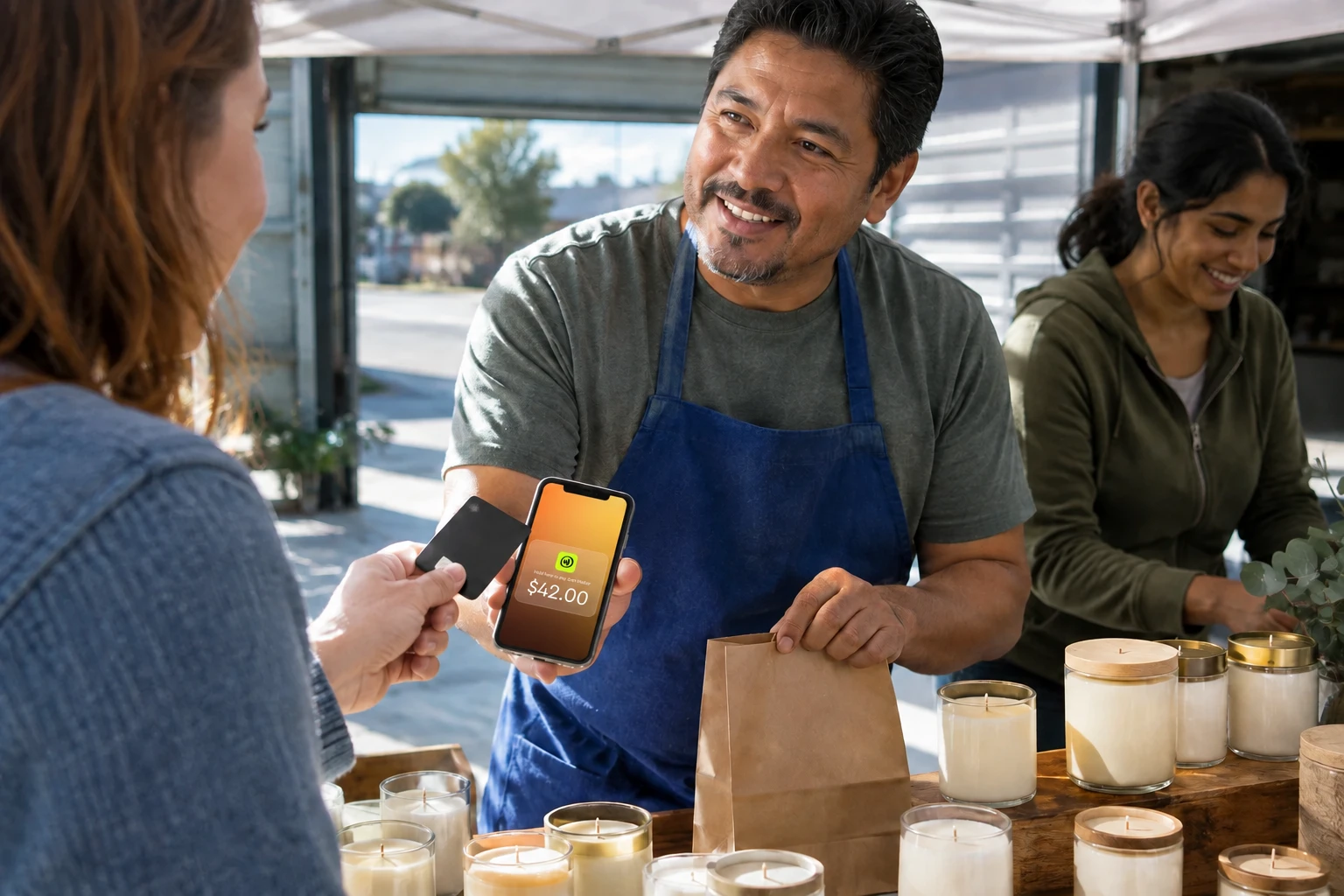
If you want to accept credit cards on your phone, your Android phone can handle NFC payments without extra hardware. JIM Tap to Pay turns your device into a mobile POS in minutes.
Set it up in three steps:
- Download the JIM app and create your seller account
- Complete ID verification to activate payments
- Start accepting taps from Visa, Mastercard, Amex, Discover, and digital wallets
Customers pay by tapping their card or phone on your screen. No card payment machine to buy, charge, or carry.
Google Wallet vs Samsung Wallet
Most Android users default to Google Wallet, but Samsung Wallet comes preinstalled on Galaxy devices and handles the same tap to pay flow. Here is how to choose.
| Factor | Google Wallet | Samsung Wallet |
|---|---|---|
| Device support | All Android 9+ phones with NFC | Samsung Galaxy devices only |
| Card networks | Visa, Mastercard, Amex, Discover | Visa, Mastercard, Amex, Discover |
| Default app on Galaxy | Set manually in NFC settings | Preinstalled, asks to be default |
| Best for | Any Android phone | Galaxy owners who want tighter device integration |
Pick Google Wallet if you switch phones or use a non-Samsung device. Pick Samsung Wallet only if you stay on Galaxy and want the built-in experience. Both use the same NFC standard and tokenization, so the tap itself works the same way.
Processing fees and instant payouts
JIM charges a flat 1.99% per tap with no monthly fees or hidden charges. See how this compares in our full guide to credit card processing fees.
According to Visa's 2025 Tap to Phone report, nearly 30% of Tap to Phone sellers are newly established small businesses.
| Traditional reader | JIM Tap to Pay | |
|---|---|---|
| Hardware cost | $50 to $150 | $0 |
| Processing fee | 2.6% + $0.15 | 1.99% flat |
| Payout speed | 1 to 2 business days | Instant |
| Setup time | Days to weeks | Minutes |
Traditional reader fees reflect published rates from major processors as of 2026. Source: Square's official website, accessed August 2026. Square's standard in-person rate is 2.6% plus $0.15 per tap, dip, or swipe after its October 2025 update. Actual rates vary by provider, volume, and card type. Exploring other options? Check our Square alternatives comparison.
Funds hit your JIM Visa Prepaid Card instantly after each sale. No waiting for batch settlements or next-day deposits. You can also accept debit card payments and digital wallet payments the same way.
Is tap to pay safe on Android?
Tap to pay on Android is safe because your real card number never reaches the terminal. The process relies on tokenization: Google Wallet replaces your card number with a unique single-use token for each transaction, and the token is useless if intercepted. That token is stored in your phone's secure element, a tamper-resistant chip separate from the main processor.
If you lose your phone, your money stays protected. Tap to pay requires your screen lock (PIN, fingerprint, or face unlock) before every transaction, so a stranger who finds your phone cannot tap to pay. You can also sign in to Google account settings and remotely lock or erase the device, which disables Google Wallet tokens. Your card issuer can suspend the digital card on request too.
These protections sit on top of NFC's own short-range encryption, which only transmits data within 1 to 2 inches of the reader.
How much does it cost to accept tap to pay on Android?
You set up Google Wallet, learned how to fix common NFC issues, and discovered your phone can double as a card reader. JIM lets you accept tap to pay on Android at a flat 1.99% with instant payouts to your JIM Visa Card. No hardware, no monthly fees. Compare all your options in our mobile payment solutions guide.
Frequently Asked Questions
Which Android phones support tap to pay?
Is there a tap to pay app for Android?
Does Android have tap to pay?
Is tap to pay safe?
Does tap to pay work without internet?
How does tap to pay work on Android?

Sell and get paid in seconds with Jim