How to Accept Google Pay: In-Store and Online (2026 Guide)
Last updated July 2026.
Yes, you can accept Google Pay at your U.S. business through a compatible payment processor, a tap-enabled device, or an online checkout or payment link. This guide covers U.S. merchant acceptance, where a customer pays your business.
You never approve the customer's payment; the shopper authorizes the tap on their own phone, and your provider settles the sale to you. The consumer wallet app is Google Wallet, which handles a shopper's own cards and is separate from the merchant tools you use to take a payment. Mobile payments are meaningful checkout behavior: Federal Reserve diary data show 11 payments per month with a mobile phone in 2024, up from four in 2018. That covers mobile-phone payments broadly, not Google Pay alone.
Taking a customer payment runs through a Google Pay-ready provider or checkout.
Receiving money from friends is a separate consumer feature.
Where the sale happens decides which path you set up.
Who Can Accept Google Pay
Google Pay merchant acceptance is a U.S. feature. To take a tap or a checkout payment, you need an approved seller profile through a payment processor, which runs identity and business verification, similar to the know-your-customer checks a bank performs. You must be 18 or older, based in the U.S., and able to accept Visa, Mastercard, American Express, and Discover. High-risk categories that card networks flag, such as gambling or certain regulated goods, can be declined during underwriting.
An in-person tap and a remote checkout share that same approval. The difference is only where the customer stands when they pay.
How to Accept Google Pay In Store or at a Pop-Up
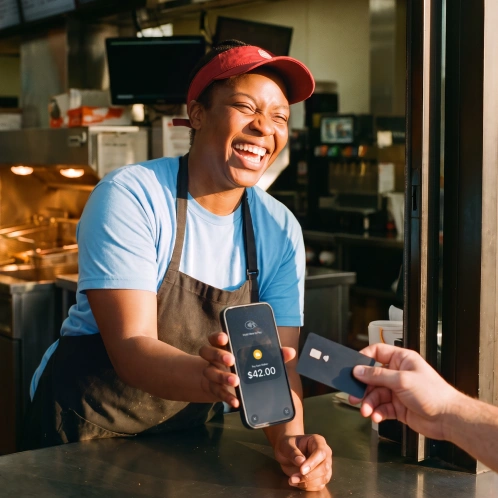
For an in-person sale, you take Google Pay with a device that reads a tap over short-range tap technology, called near-field communication, or NFC mobile payment. The customer holds a phone, watch, or contactless card to your device, and your provider settles the payment to you. Where the customer stands decides the rest.
Choose the in-person or remote path first
Match the path to the sale before you set anything up. Trying to run a walk-up counter through an online checkout, or a website order through a countertop tap, is what turns a first sale into a stall.
| In-store or pop-up sale | Remote or online sale | |
|---|---|---|
| Where the customer pays | At your counter, truck, or pop-up | On their own phone or computer, anywhere |
| What the customer does | Taps a phone, watch, or contactless card | Opens a checkout page or payment link |
| What you need | An NFC terminal or an NFC phone app | A Google Pay-ready checkout or payment link |
| Standard processing cost | Your provider's card-present rate | Your provider's rate for a card-not-present sale, usually higher |
| When you get the money | Set by your provider; some phone apps post funds instantly | Set by your provider or gateway |
This is one form of contactless payment, and the same NFC technology that powers a tap on a terminal also powers a tap on a compatible phone.
Take Your First Google Pay Tap
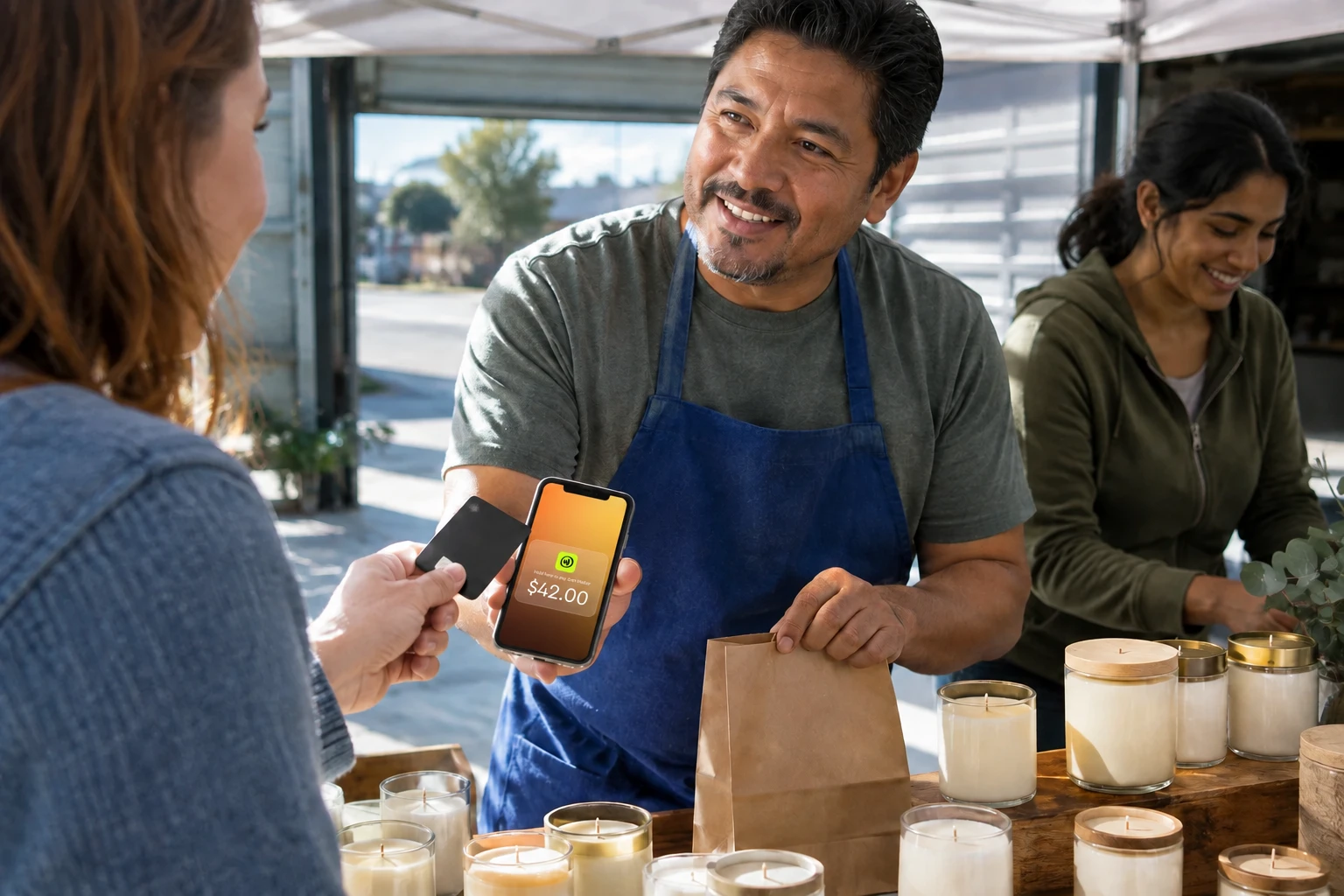
You do not need to buy a terminal to take an in-person tap. A phone-based Tap to Pay app turns a compatible phone into the acceptance device. Here is the workflow with JIM:
Confirm you have an approved seller profile and a compatible NFC phone: an iPhone XS or later, or an Android with NFC.
Open the JIM app and enter the sale amount, at least $1.
Select Sell to start the tap.
Have the customer tap their phone, watch, or contactless card on your phone.
Confirm the on-screen result before you hand over the order.
JIM Tap to Pay charges 1.99% per sale as of 2026, works in the U.S. only, and posts the money to your JIM account instantly, with no terminal to rent or buy. Apple requires an iPhone XS or later for Tap to Pay; JIM accepts that same baseline plus any Android with NFC. A food-truck owner whose phone already runs the business can take a walk-up Google Wallet tap on that same phone and keep the line moving, with no countertop terminal to buy.
If the customer is not standing in front of you, a tap will not work. A remote sale runs through an enabled checkout or a payment link instead.
How in-person tap fees compare
A flat rate below 2% is below what most card-present processors charge. The table compares equivalent, card-present tap conditions:
| Provider | Card-present tap rate | Notes |
|---|---|---|
| JIM Tap to Pay | 1.99% per sale | No monthly fee, no hardware, funds post instantly |
| Square Tap to Pay | 2.6% plus 15¢ per sale | No monthly fee; rate in effect since March 2025 |
| Stripe Tap to Pay | 2.7% plus 15¢ per sale | Requires Stripe Terminal SDK integration |
Source: JIM pricing page, accessed August 2026. Source: Square's official website, accessed August 2026. Source: Stripe's official website, accessed August 2026.
How to Accept Google Pay Online or by Payment Link
To take a remote Google Pay payment, enable it in a Google Pay-ready checkout, a payment link, or a compatible selling platform. It is one of several digital wallet payments you switch on alongside your other online payment methods.
Enable the right checkout surface
Turn the option on and confirm it before a customer ever sees it:
Switch on Google Pay in your checkout or platform settings.
Complete any domain or merchant verification the checkout asks for, so the wallet button loads.
Publish the checkout or send the link to the customer.
Run a small test payment first.
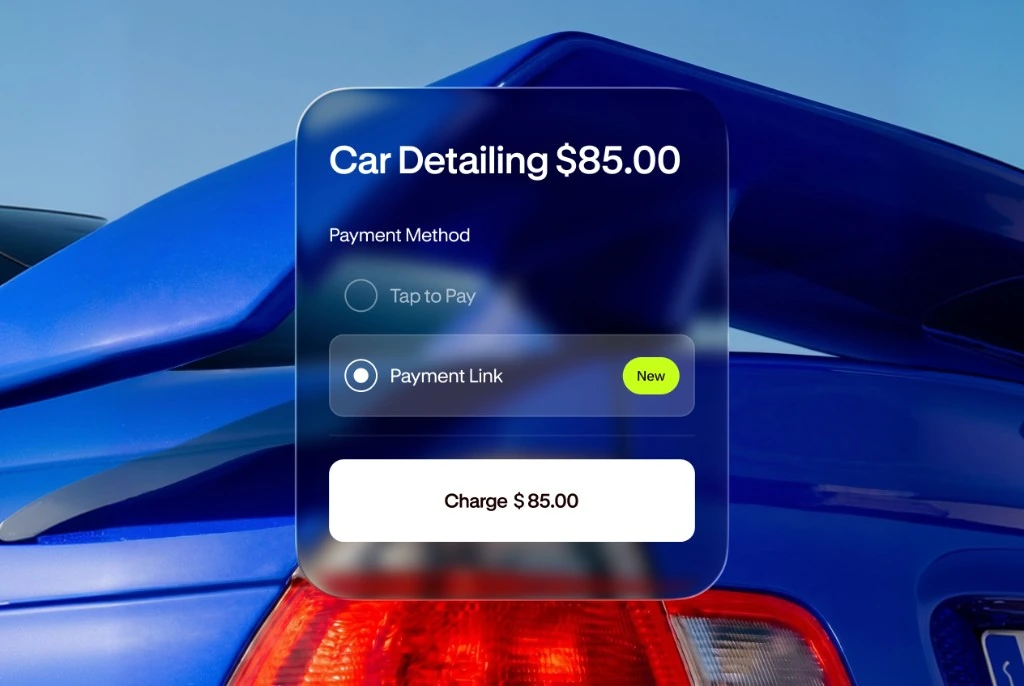
A payment link skips most of that. You enter the amount, share the link, and the customer pays from a page you never had to build.
Platform-specific setup
The three platforms merchants ask about most each enable Google Pay through their own payment settings:
Shopify: In Settings, open Payments, choose a provider that supports Google Pay, and the wallet button appears on your Shopify checkout automatically once your domain is verified.
WooCommerce: Install a Google Pay-ready gateway extension, such as Stripe for WooCommerce, then enable Google Pay inside the gateway settings and run a test order.
Stripe Checkout: In the Stripe dashboard, turn on Google Pay under your payment methods, verify your domain, and the button loads on any Stripe-hosted checkout or payment link.
Know the remote-payment cost and protection
A card-not-present sale carries more fraud risk, so it usually costs more than an in-person tap and adds a check. 3D Secure, the EMVCo authentication protocol, adds an extra identity-verification step that confirms the shopper during a remote payment, and it runs in the background. Tokenization, defined by the PCI Security Standards Council, replaces the real card number with a non-sensitive token so the original number never reaches your system.
JIM Payment Link supports Google Wallet, costs 4.99% plus $0.30 per transaction with 3D Secure built in, and posts funds to your JIM account instantly. That runs above the 1.99% on an in-person tap, because the remote sale carries no card-present signal and more fraud risk. A caterer confirming a booking sends the deposit as a secure payment link instead of asking a customer to tap a device they are not standing next to, and the payment clears from their phone before the event.
Both paths still need a controlled test and a clear response to a failure before launch.
Test Google Pay Before You Offer It to Customers
Run one small live sale before any customer pays this way. A quick test on your own device confirms the setup works and shows staff what a completed payment looks like, so the first real sale does not stall at the counter or the checkout page.
First-sale checklist
Before you go live, confirm each of these:
Your acceptance device and approved seller profile are ready, and the correct checkout surface is switched on.
You ran a small real payment, not a demo, and the money landed where you expected.
Staff can spot a completed payment on screen and know the fallback if a tap does not read.
The Google Pay mark is visible at your register or checkout.
When a tap or checkout fails
Most failures trace to a few fixable causes. Check them in this order:
| Symptom | First things to check |
|---|---|
| Google Pay button never appears | Device or browser compatibility and your checkout configuration; confirm the wallet option is enabled and any domain verification is complete |
| Payment is declined | The customer's wallet, card, or bank; ask them to try another card or contact their bank |
| Tap does not read | NFC readiness on both devices; the customer's phone, watch, or contactless card needs NFC on and held close |
A watch or other wearable can tap only when it supports NFC, so treat it as one more customer device. If you use an NFC terminal instead of a phone, the same readiness checks apply.
A small test and a short failure checklist keep the first live sale from becoming a checkout disruption. For an in-person seller whose phone already fits, the next step is a phone-based tap, not a separate hardware purchase. Download the JIM app, run your test tap, and you are ready before the next customer reaches the counter. If most of your sales happen remotely, match the path to where the customer pays.
Refunds and Chargebacks on Google Pay Sales
A Google Pay tap or link refund follows your processor's normal card-refund flow: you issue the refund from your app or dashboard, and the money returns to the customer's card. A chargeback is different. The customer disputes the charge with their bank, which pulls the funds back while it investigates. Keep receipts, delivery proof, and customer messages so you can contest a chargeback you believe is wrong. Google Pay itself does not decide chargebacks; the card-issuing bank does. For a deeper look at the chargeback process, see JIM's guide to credit card chargebacks.


Sell and get paid in seconds with Jim